![SignalPET White-1.png]](https://docs.signalpet.com/hs-fs/hubfs/SignalPET%20White-1.png?height=27&name=SignalPET%20White-1.png)
-
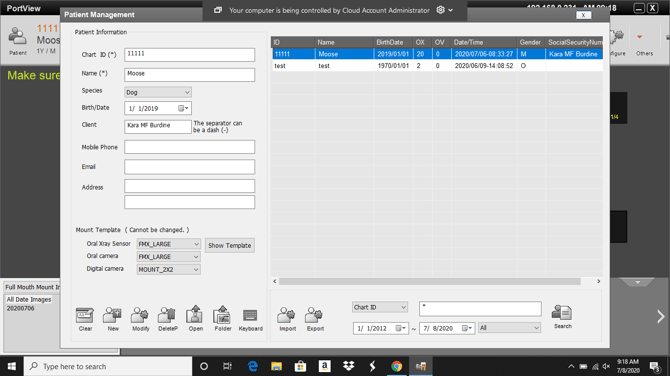
PortView default opens to their study list, please highlight and open a study.
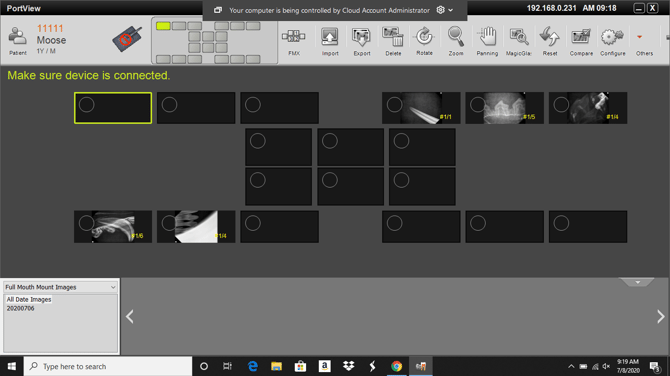
- On the top right hand corner click the “Gear” that says “Configure” below it.
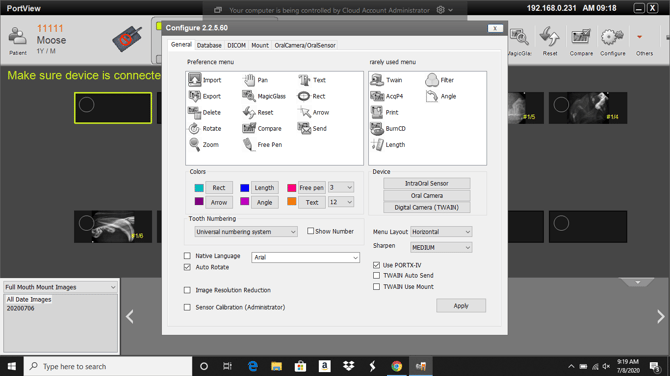
- The Configure menu will pop up, please the tab that says “DICOM”
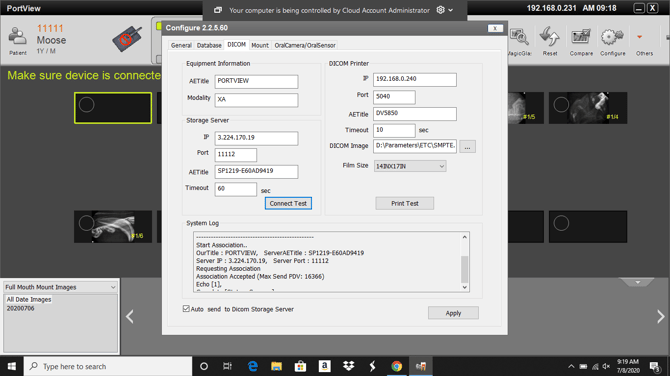
-
Input SignalPET information as the “Storage Server” (FIND OUT IF THEY ARE USING THE SERVER THAT IS ALREADY IN PLACE BEFORE PUTTING IN SIGNALPET’S INFO!)
5. Click the “Connect Test” and make sure we are connected succesfully.
6. Click the check box for “Auto Send To DICOM Storage Server.
7. Click the “Apply” button and close out of the configure tool.
8. Send test study